Mastering the Royal Crown Icon Silhouette Bundle for Professional Design Projects
Visual hierarchy is the backbone of effective graphic design, and few symbols command attention quite like a crown. Whether you are crafting an invitation for a high-society gala, designing a logo for a luxury brand, or creating educational materials about history, the right iconography can elevate your work from amateur to authoritative. The Royal Crown Icon Silhouette Bundle provides a curated selection of these essential graphics, offering versatility through multiple file formats including EPS, JPG, SVG, and PNG. However, simply downloading a pack of vectors is not enough to guarantee professional results. Many creators overlook critical technical and aesthetic details that can compromise the final output.
Understanding how to properly select, edit, and implement these assets is crucial. This guide explores common pitfalls designers face when working with crown silhouettes and offers practical advice to ensure your projects maintain their integrity and visual impact.
The Trap of Ignoring File Format Compatibility
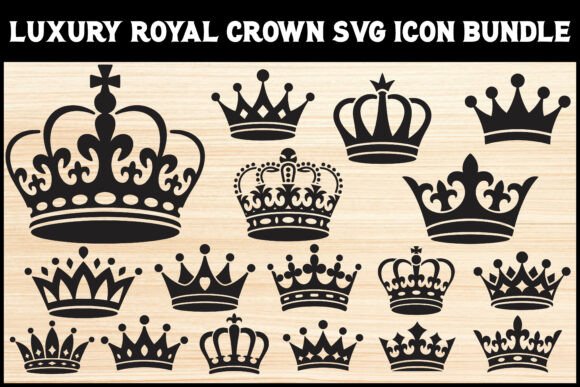
One of the most frequent mistakes beginners make is assuming all image files are created equal. The Royal Crown Icon Silhouette Bundle includes seventeen distinct designs in four different formats: EPS, JPG, SVG, and PNG. Using the wrong format for your specific medium can lead to pixelation, editing limitations, or unnecessary file bloat.
For instance, using a JPG for a logo that needs to be scaled from a business card to a billboard is a critical error. JPGs are raster images, meaning they are made of pixels. When enlarged, they become blurry and unprofessional. Conversely, SVG and EPS files are vector-based. They use mathematical paths to define shapes, allowing them to be scaled infinitely without losing quality. If you are sending files to a professional printer, always use the EPS or SVG versions. Reserve the PNG files for web use where transparency is required, and avoid JPGs unless you are certain the image will remain at a fixed, low resolution.
Better Approach: Before starting any project, identify your end goal. If it is for print or scalable branding, open the SVG or EPS files in vector software like Adobe Illustrator or Inkscape. If it is for a social media post or a website header, the high-resolution PNGs are often more convenient and ready to use.
Overlooking the Nuances of Silhouette Complexity
A common misunderstanding is that all crown icons are interchangeable. In reality, the silhouette of a crown carries specific historical and cultural connotations. A minimalist, modern crown shape suggests contemporary elegance, while an ornate, Victorian-style crown implies tradition, heritage, and opulence. Using a fairytale-style tiara for a serious corporate monarchy emblem can create a tonal disconnect that confuses your audience.
Many users download the entire bundle and randomly pick a design that "looks nice," ignoring the context. This can affect communication and brand perception. For example, a king’s crown typically features arches and a cross, symbolizing authority and divine right, whereas a queen’s tiara might be more open and decorative, suggesting grace and nobility. Mixing these up in a themed project, such as a wedding invitation suite or a historical presentation, can appear careless to those who notice the details.
Practical Advice: Review each of the seventeen designs in the regal crown bundle carefully. Match the style of the crown to the mood of your project. Use the bold, heavy silhouettes for strong, masculine branding or headers. Choose the delicate, intricate lines for feminine or luxury beauty products. Ensure the visual weight of the crown balances with your typography and other design elements.
Neglecting Editability and Customization Potential
Another overlooked detail is the failure to utilize the editable nature of vector files. Many creators treat SVGs as static images, missing out on the ability to customize them to fit their unique brand identity. The editable crown outline features in this bundle allow you to modify anchor points, adjust thickness, and combine elements to create a unique monogram or emblem.
Leaving the crowns in their default black state is also a missed opportunity. While black silhouettes are versatile, they may not align with your color palette. Some designers attempt to change colors in raster programs like Photoshop, which can result in jagged edges or loss of transparency. This affects the quality and professionalism of the final graphic.
Solution: Import the SVG or EPS files into a vector editor. Here, you can easily change the fill color to match your brand guidelines, add gradients for a metallic gold or silver effect, or even subtract parts of the crown to integrate initials for a custom crown monogram element. This level of customization transforms a stock asset into a bespoke design component.
Poor Integration with Layout and Typography
Even with the perfect file format and style, poor integration can ruin a design. A frequent error is placing a complex ornate crown vector over busy backgrounds or pairing it with equally intricate fonts. This creates visual noise, making the design hard to read and aesthetically cluttered. The strength of a silhouette lies in its contrast and simplicity.
Additionally, scaling issues often arise. A crown that looks balanced in isolation may appear too small or overwhelmingly large when placed next to text. This imbalance disrupts the visual flow and can make the design feel amateurish. It is essential to consider the white space around the icon. Crowns need room to breathe to convey their sense of majesty and importance.
Best Practice: Use the minimalist crown SVG options when working with detailed backgrounds or complex layouts. Pair bold crown icons with clean, sans-serif typography for a modern look, or use serif fonts for a classic, royal aesthetic. Always check the alignment and spacing. Ensure the crown is centered or aligned according to the grid system of your layout. Test the design at different sizes to ensure legibility and impact.
Checking Licensing and Usage Rights
While not always a technical design mistake, failing to verify usage rights is a significant legal and ethical oversight. Before using any asset from the Royal Crown Icon Silhouette Bundle in commercial projects, such as client logos, products for sale, or marketing materials, confirm the license terms. Some bundles are for personal use only, while others allow commercial application. Ignoring this can lead to copyright infringement issues, resulting in takedown notices or legal fees.
Final Checklist:
- Format: Are you using vectors (SVG/EPS) for print and scalability?
- Style: Does the crown’s historical style match your project’s tone?
- Customization: Have you adjusted colors and shapes to fit your brand?
- Layout: Is there sufficient contrast and white space around the icon?
- License: Do you have the right to use this asset for your intended purpose?
By avoiding these common pitfalls and approaching the Royal Crown Icon Silhouette Bundle with a strategic mindset, you can enhance the quality and effectiveness of your design work. These assets are powerful tools when used correctly, offering a blend of tradition and versatility that can elevate any creative project. Take the time to understand the tools at your disposal, and your results will reflect the care and precision you put into every decision.